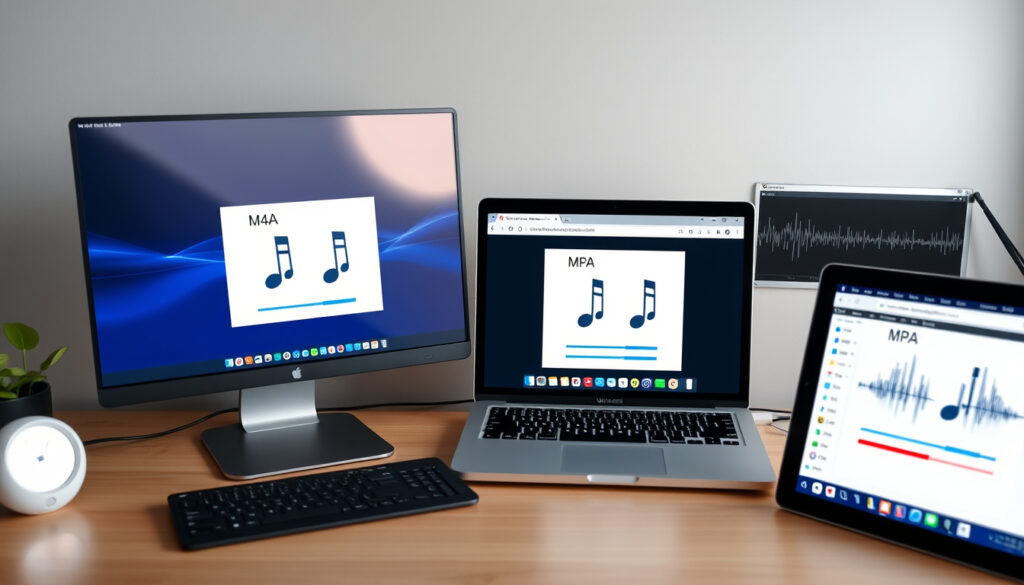
M4A to MP3: Free Converter Guide for Windows, Mac & Online
You’ve got an M4A file that your car stereo refuses to play, or maybe your podcast hosting platform only accepts MP3. Either way, you’re stuck with a file that should work everywhere but doesn’t. Converting M4A to MP3 is simpler than it sounds, and there are free options that don’t require installing anything or creating an account.
Primary Use: Compatibility across devices · M4A Base: AAC codec · MP3 Status: Widely supported · Free Options: Online converters available · Platforms: Windows, Mac, online
Quick snapshot
- M4A uses AAC codec — smaller files, better quality than MP3 (FreeConvert)
- Converting M4A to MP3 is legal for files you own (Zamzar)
- Whether MP3 remains fully relevant as a universal format beyond 2025
- If genuinely lossless M4A-to-MP3 conversion is feasible at scale
- CapCut launched with audio conversion features in 2020 (CapCut)
- Permute v1.0 offered free M4A-to-MP3 conversion for Mac in 2012 (Microsoft Community Hub)
- Batch conversion tools are becoming standard across desktop and mobile platforms
- Quality-loss warnings are increasingly prominent in converter UIs
| Aspect | Detail |
|---|---|
| M4A Origin | Apple iTunes format |
| MP3 Support | Universal playback |
| Conversion Loss | Potential quality drop |
| Free Converters | CloudConvert, FreeConvert |
| Desktop Options | VLC, iTunes, Audacity |
| Batch Support | Available on most tools |
How can I change a M4A file to MP3?
Three main paths exist for converting M4A to MP3: online tools, desktop software, and mobile apps. Each suits different needs depending on how many files you have and whether you want to install anything.
Online converters
Online converters handle conversion directly in your browser — no downloads, no installation, and no account required for basic use. According to Zamzar, you can convert M4A to MP3 without creating an account for smaller files. FreeConvert offers 256-bit SSL encryption with auto-deletion of files after processing, addressing privacy concerns that many users overlook.
FreeConvert, CloudConvert, and Zamzar consistently rank as the top three free online converters in 2026, based on aggregated tool rankings. CloudConvert provides quality control options so you can adjust bitrate before conversion.
Desktop software
VLC Media Player converts M4A to MP3 on Windows, Mac, and Linux without additional plugins. VLC supports MP3 bitrate up to 320kbps and sample rates from 8kHz to 48kHz, giving you control over output quality. iTunes can convert M4A to MP3 by changing Import Settings to MP3 Encoder, allowing bitrate adjustment.
Mobile apps
CapCut, launched in 2020, converts M4A to MP3 on desktop, Android, and iOS platforms. It integrates with TikTok and is used by both amateur and professional editors for quick audio adjustments.
How can I convert m4a to mp3 on my Windows 11 PC?
Windows 11 users have multiple built-in and downloadable options for M4A to MP3 conversion. Here’s a practical breakdown of what works without leaving your machine.
Built-in tools
Windows Media Player converts M4A to MP3 via the Rip Music options by selecting MP3 as the format. This requires ripping from a CD or importing existing files — the conversion happens during the import process rather than a direct format change.
For files already on your hard drive, iTunes (free from Microsoft Store) works as a standalone converter. Change the import settings to MP3 Encoder, then drag your M4A files into the library and choose “Create MP3 version” from the file menu.
Free software downloads
VLC Media Player is a free, open-source option that handles nearly all audio codecs and keeps your files completely private — no uploading required. Aiseesoft Video Converter Ultimate supports over 1000 formats including M4A to MP3, though it’s more resource-intensive than lighter alternatives.
MiniTool Video Converter offers a free desktop option specifically for M4A to MP3 conversion, targeting users who prefer offline software over browser-based tools.
iTunes installation takes up significant disk space and runs background processes. If you only need audio conversion, VLC at roughly 1% of iTunes’ footprint is the cleaner choice.
Why is M4A better than MP3?
The M4A format carries genuine technical advantages over MP3, though whether those advantages matter depends on your specific use case.
Audio quality differences
M4A uses AAC (Advanced Audio Coding) or ALAC (Apple Lossless Audio Codec) — codecs that achieve better compression than MP3’s older technology. According to FreeConvert, M4A files are smaller in size while simultaneously offering better audio quality than MP3 files at equivalent bitrates.
VLC supports MP3 bitrates up to 320kbps, but the original M4A source likely contains more sonic information that gets lost in the lossy-to-lossy conversion process. This is why audio purists often resist converting from M4A to MP3.
File size comparison
A 4-minute song in M4A at 256kbps AAC typically weighs 7-8MB. The same song converted to MP3 at 320kbps (the maximum quality setting) increases to 10-12MB, and you lose data in the process. The trade-off: MP3 plays on virtually every device ever made, while M4A sometimes requires codec support that older hardware lacks.
M4A’s compression advantage means you get better-sounding files at smaller sizes — but only if your playback device supports AAC. Converting to MP3 trades quality for universal compatibility.
Is it legal to convert M4A to MP3?
The legal question around format conversion is more nuanced than most articles suggest. Here’s what you actually need to know before converting files.
Personal use rules
Converting M4A to MP3 is legal when you’re converting files you own. This applies to music you’ve purchased, audiobooks you’ve bought, and recordings you’ve created yourself. The legal framework treats format conversion as equivalent to making a backup copy — permitted as long as you retain the original.
Zamzar’s support documentation confirms that converting personal audio files to different formats for personal use falls within standard consumer rights. This positions the service as a tool for legal format shifts rather than piracy facilitation.
DRM considerations
The complication arises with DRM-protected M4A files from services like Apple Music. These files are encrypted and cannot be legally converted without removing protection first — which typically violates the service’s terms of use. If your M4A file won’t play in a standard player, it’s likely DRM-protected, and converting it would create legal exposure.
Your personal recordings, purchased music, and non-DRM files are fair game for conversion. Anything with active DRM protection sits in a legal gray zone — proceed carefully.
Should I convert M4A to MP3?
The decision hinges on a specific question: do you need compatibility more than you need quality? Here’s how to think through it.
Pros and cons
MP3 plays on car stereos from the 2000s, budget Bluetooth speakers, gym equipment, and every web browser ever made. M4A, despite its technical superiority, sometimes fails on older hardware or niche platforms that haven’t updated their codec support.
The downside: converting M4A to MP3 is a lossy process. You’re taking audio data, compressing it again using an older codec, and losing information you can’t recover. For casual listening, this trade-off is invisible. For audiophiles or archival purposes, it’s a meaningful quality reduction.
When to convert
Convert to MP3 when you’re creating a podcast, uploading to a platform with MP3 requirements, or building a music library for devices with limited format support. Keep files in M4A when you’re storing the original, working with high-end audio equipment, or distributing to Apple device users who will hear the difference.
For podcasters and casual listeners: MP3 compatibility wins. For music collectors and audiophiles: stick with M4A unless you specifically need the format.
Across the converter landscape, free options cover the vast majority of use cases, with paid converters adding speed and preset optimization for users processing large batches.
| Converter | Platform | Price | Batch Support | Speed |
|---|---|---|---|---|
| VLC Media Player | Windows, Mac, Linux | Free | Yes | Standard |
| Tipard Video Converter | Windows, Mac | $19.95-$59.95 | Yes | 120x speed |
| FreeConvert | Online | Free | Yes | Standard |
| Audacity | Windows, macOS 10.12+, Linux | Free | Yes | Standard |
| Movavi Video Converter | Windows, Mac | $19.95-$59.95 | Yes | Fast |
Upsides
- MP3 plays on every device and platform ever made
- Free online tools require no installation
- Batch conversion saves time when processing multiple files
- Desktop software keeps files local and private
- Legal for files you own and have the right to convert
Downsides
- Converting M4A to MP3 loses audio data — a lossy-to-lossy process
- Online converters require uploading files to external servers
- FreeConvert, CloudConvert, and Zamzar rankings are based on aggregated user data, not independent benchmarks
- DRM-protected M4A files cannot be legally converted
- Quality loss is irreversible once files are converted
How to Convert M4A to MP3: Step-by-Step
For users who learn better with clear steps, here’s a practical walkthrough using the most accessible methods.
- Method 1 — Online (FreeConvert): Visit freeconvert.com/m4a-to-mp3, upload your file (batch upload supported), select MP3 as output format, adjust quality settings if needed, and click Convert. Download your file after processing completes.
- Method 2 — Desktop (VLC): Open VLC, go to Media > Convert/Save, add your M4A file, select Audio – MP3 as the output codec, set the destination folder, and click Start. The file converts in the background while you continue using the player.
- Method 3 — macOS Quick Actions: Right-click any M4A file in Finder, select Quick Actions > Encode Audio, and choose MP3 from the format menu. This method requires no additional software on modern macOS versions.
- Method 4 — iTunes: Open iTunes, go to Edit > Preferences > Import Settings, select MP3 Encoder, drag your M4A files into the library, right-click, and choose “Create MP3 Version.”
Evano allows 10 free daily conversions online — a limit that catches users off guard when processing large batches. Track your usage if you rely on free tier tools.
What People Say
One of the quickest free ways to convert M4A to MP3 is using an online conversion tool like Zamzar, which handles the process without requiring any software installation.
— Zamzar (Online Converter Service)
M4A files are smaller in size while simultaneously better in quality than MP3 files — the compression advantage is real but comes with compatibility trade-offs.
— FreeConvert (Converter Service)
VLC is open-source and supports nearly all audio codecs for conversion — it’s the most versatile free option available for users who want complete control over output quality.
— Audio Tool Review (Independent Converter Analysis)
The pattern across these sources is consistent: M4A’s technical edge is real, but MP3’s ubiquity creates practical pressure to convert. Most users land somewhere between audiophile standards and real-world compatibility needs — and the tools exist to serve both positions.
For podcast creators, car stereo listeners, and anyone building a cross-platform music library, converting to MP3 makes sense. For music collectors, Apple device users, and anyone prioritizing audio fidelity, keeping files in M4A is the better call. The choice isn’t about which format is objectively superior — it’s about which trade-off fits your specific situation.
Related reading: cm to ft converter · 3/8 to mm converter
tipard.com, toolsmart.ai, happyscribe.com, convertio.co, tunefab.com, videoconverter.wondershare.com, aiseesoft.com, flexclip.com
While online tools offer quick fixes, this detailed cross-platform guide dives deeper into Windows, Mac, and even mobile methods without compromising audio quality.
Frequently asked questions
What is the difference between M4A and MP3?
M4A uses AAC or ALAC codecs, which compress audio more efficiently than MP3. This means M4A files are typically smaller while maintaining higher audio quality. MP3 uses an older codec that trades some quality for broader compatibility with old and new devices alike.
Does converting M4A to MP3 lose quality?
Yes. M4A to MP3 conversion is a lossy-to-lossy process — you’re compressing already-compressed audio through an older codec. The quality loss is subtle for casual listeners but measurable for trained ears or professional applications.
What are the best free M4A to MP3 converters?
Based on aggregated tool rankings, FreeConvert, CloudConvert, and Zamzar consistently rank as the top three free online converters. For desktop use, VLC Media Player and Audacity are free, open-source options with strong codec support.
Can I convert M4A to MP3 on Mac?
Yes. macOS Quick Actions let you convert M4A to MP3 via right-click in Finder without additional software. iTunes (or Music in newer macOS versions) also supports conversion, and online tools work in any browser on Mac.
Is there an M4A to MP3 app for Android?
CapCut offers an Android app that converts M4A to MP3, along with video editing features. Multiple other audio converter apps are available on Google Play with varying feature sets and daily conversion limits.
How do I batch convert M4A to MP3?
Most converters — including FreeConvert, CloudConvert, VLC, and Tipard Video Converter — support batch processing. Online tools typically let you upload multiple files at once; desktop software usually has a queue feature for large batches.
What software works for M4A to MP3 on Windows?
Windows users have several free options: VLC Media Player, Windows Media Player (with ripping), iTunes, Audacity, and MiniTool Video Converter. All handle M4A to MP3 conversion without requiring paid software.
More related posts
 How to Pick a Baby Name – Step-by-Step Guide for Parents
 Machu Picchu Facts, Inca Trail Bathrooms, Beginner Hiking Tips
 Olivia Attwood: Biography, Split, Net Worth & TV Career
 Emma Freedman: Children, Husband, and TV Career
 ESK Skin Care Reviews: User Results & Buying Guide
 Royel Otis: Band Members, Songs, Rumors & Sound of 2026
 Olivia Gadecki: Biography, Rankings, Titles & Polish Heritage